A site offering 54 PDF tools can be impressive or simply confusing. The useful question is not how many route names fit in a menu; it is whether the important workflows produce structurally valid files and whether the site tells users when a document stays local, reaches a conversion server, enters object storage, or is sent to an AI provider.
For this TiPDF review, I tested six workflows with synthetic, non-sensitive documents on July 21, 2026: Merge, Compress, Redact, OCR, Protect, and Unlock. I used generated PDF fixtures rather than personal records, contracts, or customer files. I checked page counts and order, text extraction, compression behavior, password failure, encryption type, and the protect-to-unlock round trip.
The result is more nuanced than “all files stay in your browser.” Many of TiPDF’s document operations really do run locally. Other tools explicitly require a remote conversion service, an object-storage workflow, or an AI provider. The product’s best design decision is that those boundaries are attached to the individual workflow instead of hidden behind one universal privacy slogan.
Test method and fixture design
I created two PDFs containing only synthetic text. File A had one page, 300 points wide. File B had two pages, 400 and 500 points wide. The visible text identified the fixture and page number. This made the merge result easy to validate without exposing sensitive content: the expected output was three pages in the exact width order 300, 400, 500.
For OCR, the fixture displayed OCR TEST DOCUMENT 2026. For password work, I used a test-only password that was not reused anywhere else. The redaction check used a known text page so post-processing extraction could reveal whether the content remained recoverable.
I ran the product’s current browser workflows, not just unit functions. Four targeted end-to-end groups passed: merge; compress plus redaction; PDF creation plus password round trips; and browser OCR. I also repeated the visible Merge, Compress, and Protect flows on the public site to capture the current interface and result messages.
This test did not upload a document to Word-to-PDF, PDF-to-Office, storage sharing, or AI tools. I inspected how those routes disclose remote processing, but I deliberately kept my test files out of remote workflows.
Result table
| Tool | Synthetic input | What I verified | Result |
|---|---|---|---|
| Merge | 1-page PDF + 2-page PDF | Page count, source order, mixed widths | 3 pages in 300, 400, 500 order |
| Compress | Already compact 1-page PDF | Output opens; no false size claim | Original 1.0 KB bytes retained |
| Redact | 1-page text PDF | Page remains valid; text extraction after redaction | 1 page; extracted text was empty |
| OCR | PDF showing known synthetic words | Searchable PDF and text artifact | OCR TEST DOCUMENT 2026 recovered |
| Protect | Plain 1-page PDF | Wrong-password failure, correct-password open, cipher | AES-256; protected output opened only with password |
| Unlock | Protected test output | Password removal and valid structure | Unlocked 1-page PDF opened normally |
These are controlled fixtures, not performance benchmarks. Large scans, unusual fonts, malformed PDFs, signatures, forms, and low-quality photos can behave differently.
Merge PDF preserved page order and dimensions
The Merge PDF tool accepts 2–100 PDFs and describes a 100 MiB and 500-page limit per local input. It concatenates whole documents in selected-file order. The current interface does not offer a post-selection drag reorder, so the sequence chosen in the file picker matters.
My two inputs totaled 2.4 KB. TiPDF reported: “Combined 2 PDFs into 3 pages.” The output was 1.8 KB in this tiny synthetic case. More importantly, parsing the result returned three pages with widths 300, 400, and 500, proving that File A preceded both pages of File B and that mixed page dimensions were not normalized away.
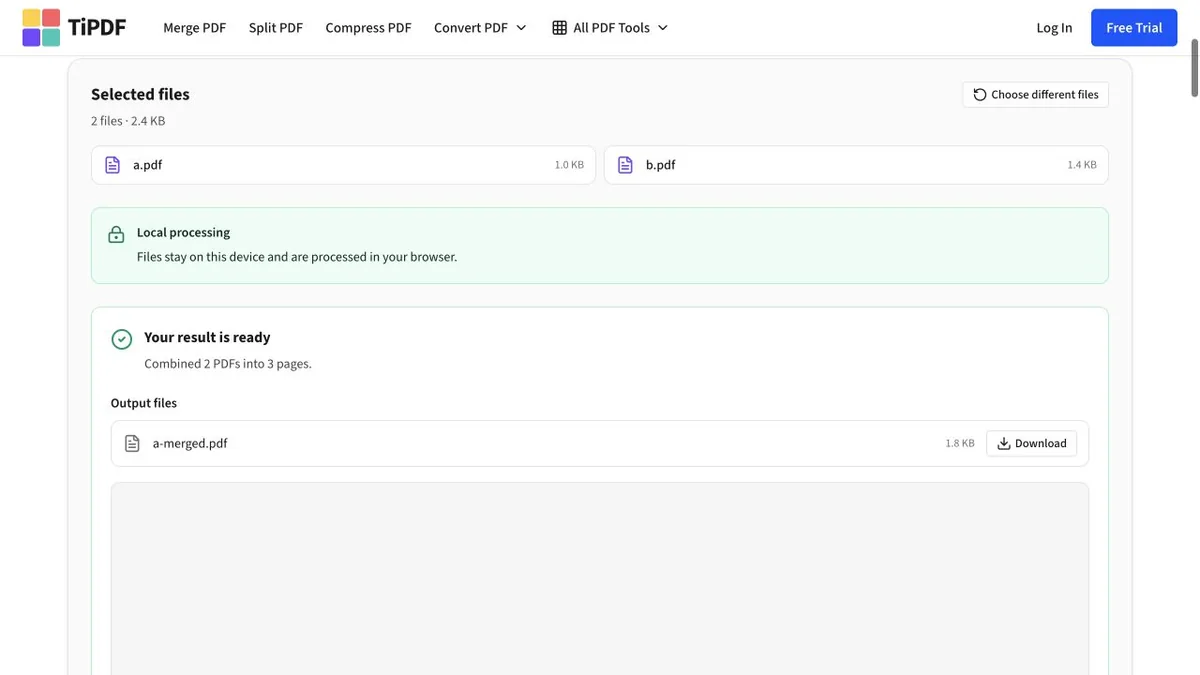
Hands-on test on July 21, 2026: two non-sensitive synthetic files became a three-page PDF in selection order.
This operation copies PDF pages rather than rasterizing them. That is the right behavior for text and vector fidelity, but “copies pages” is not the same as “preserves every container feature.” Bookmarks, attachments, document metadata, interactive form-field names, and certificate signatures can depend on structures outside a copied page. Anyone assembling a formal submission should inspect those features separately.
The tool is best for complete-file concatenation. If the job is to reorder individual pages inside one document, a dedicated organize tool is a better fit.
Compress PDF refused to make a tiny file larger
Compression tests are easy to misrepresent. A text-only PDF can already be smaller than a rasterized replacement, while a photo-heavy scan may shrink dramatically.
TiPDF’s Compress PDF workflow explains its method: pages are rendered in the browser, encoded at the selected quality, and placed into a new PDF. That can reduce large images, but it may remove searchable text, vector shapes, links, annotations, or interactive forms.
I selected the default Balanced mode on the 1.0 KB synthetic text fixture. The processed version would not have been smaller, so the tool returned the original bytes and stated: “The PDF was already compact, so TiPDF kept the original bytes to avoid making it larger.”
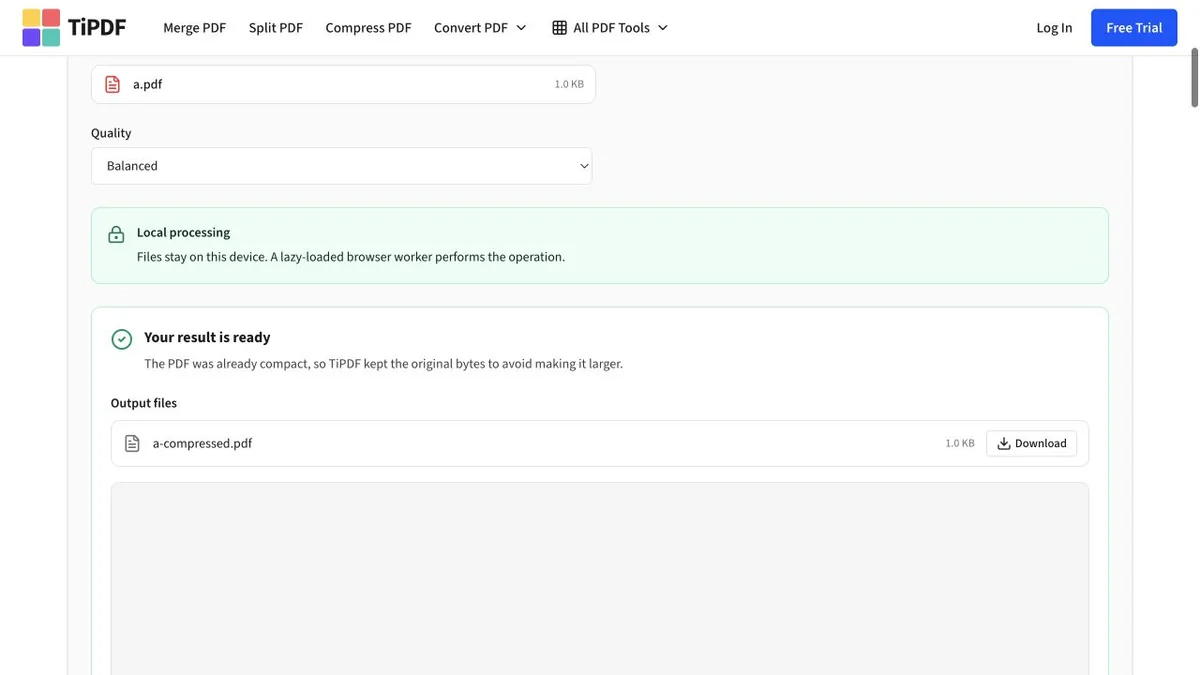
Hands-on test on July 21, 2026: the 1.0 KB input stayed 1.0 KB instead of receiving a misleading negative compression result.
That is a small but meaningful quality signal. Some compressors always create a new file and then advertise a percentage even when the output is larger or visibly degraded. TiPDF compared the completed bytes and chose not to claim an improvement.
For real use, I would test an image-heavy scan, compare file size, zoom into small text, and try text selection. Compression quality is a document-specific decision, not one universal preset.
Redact PDF removed recoverable page text in the test
Visual black rectangles are not necessarily redaction. If the original text remains beneath an annotation, a recipient may copy it, remove the overlay, or extract it with another tool.
The tested TiPDF redaction workflow rasterizes the rendered page with the redaction applied, then writes a new PDF. After processing the one-page synthetic fixture, the result still had one page. PDF text extraction returned an empty string, so the known text was no longer present as selectable page text.
That is the intended security property for a permanent visual redaction, with a cost: rasterization removes or flattens more than the selected words. Searchability, links, form controls, vectors, and accessibility structure can be lost. Redaction also cannot remove information hidden in document metadata, attachments, comments, or layers unless the workflow explicitly handles them.
I would use Redact PDF on a copy, download the result, search for every removed phrase, attempt text extraction, inspect metadata and attachments, and keep the source under appropriate access control. A browser result preview is not the final security review.
OCR produced both a searchable PDF and extracted text
OCR is the slowest of the six tested tasks because it has to render a page, recognize pixels, and create new artifacts. The fixture displayed the known phrase OCR TEST DOCUMENT 2026. The browser worker completed the job, and the extracted text contained that phrase. The generated PDF also passed the searchable-text check.
This proves the current controlled path can recognize clean, high-contrast synthetic type. It does not establish handwriting support or perfect accuracy on skewed receipts, faded faxes, dense tables, mixed scripts, or low-resolution phone photos.
The PDF OCR tool runs this workflow in a browser worker. Local OCR avoids sending the page image to an OCR API, but it can consume significant CPU and memory on the device. Large jobs will feel different on a low-powered phone than on a desktop.
For production documents I would compare a few known sentences, check reading order, review numbers and names manually, and keep the original scan. Searchability is helpful; it is not proof that every recognized character is correct.
Protect and Unlock completed an AES-256 round trip
The Protect workflow requires a password of at least eight characters and applies AES-256 encryption locally. In the visible public test, the 1.0 KB fixture became a 2.2 KB protected output. The page reported that the PDF was protected with AES-256.
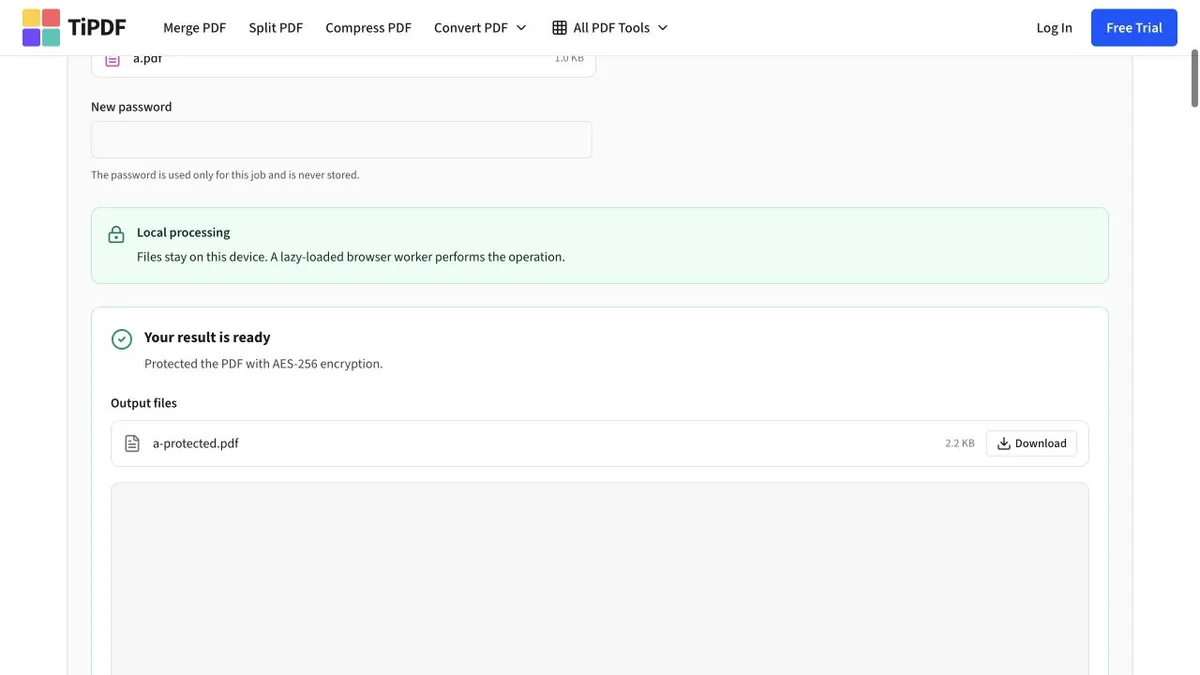
Hands-on test on July 21, 2026: a synthetic PDF was encrypted locally; the test password was used only for this fixture.
The structural test went further. Opening the protected bytes with a wrong password failed. Opening them with the correct password succeeded, and the reported security algorithm was AES-256. I then uploaded that protected artifact to Unlock with the authorized password. The unlocked output parsed as an ordinary one-page PDF.
This round trip demonstrates working encryption and removal, not digital rights management. TiPDF uses the same entered password for user and owner access and applies explicit permission flags. PDF viewer enforcement varies, and anyone with the password plus an unlock tool can create an unencrypted copy. A password is useful access friction for storage and sharing; it cannot prevent an authorized recipient from redistributing content.
The safest practice is to send the file and password through separate channels, avoid reused credentials, retain an unencrypted source in controlled storage, and confirm the recipient’s viewer supports the encrypted output.
The 54 tools do not share one privacy boundary
TiPDF’s catalog currently contains 54 tools, but the processing model changes by task. I found four meaningful categories.
1. Local browser processing
Merge, page organization, many image/PDF transformations, compression, redaction, OCR, and password operations can run in browser memory or a local worker. The selected files stay on the device for that operation. This model is especially appropriate when mature browser libraries can read and write the format directly.
“Local” still means the web application code is running in the page. Users should load the genuine HTTPS domain, keep the browser updated, and avoid untrusted extensions. The downloaded result can also contain whatever data the source contained unless the operation deliberately removes it.
2. Disclosed remote conversion
Office-style conversions may require a configured conversion service because a browser cannot reliably reproduce every Word, Excel, or PowerPoint feature. TiPDF’s workspace uses an explicit approval step before a route sends a file to remote infrastructure. If the service is not configured, the workflow explains that limitation instead of silently substituting a fake local conversion.
If the source is already a spreadsheet and the goal is simply a document export, TableConvert’s Excel to PDF converter is another workflow to evaluate; the same rule applies—inspect what is uploaded and verify the result rather than assuming format conversion is lossless.
3. Object storage and sharing
A Share Document workflow cannot remain purely local if another person must retrieve the file later. That feature needs object storage, a public or signed link, retention rules, and deletion behavior. This is fundamentally different from merging two files in memory, even though both appear in one PDF toolbox.
Before using storage, check link access, expiration, deletion, regional hosting, logging, and who can revoke the share.
4. AI workflows
Summarization, chat, translation, and question generation extract text and then send reviewed content to a configured AI provider after approval. The file may be processed locally first, but the text still crosses a remote boundary once the user confirms.
For sensitive documents, users should understand which text is sent, whether images are included, how the provider retains requests, and whether the output can be used under their organization’s policy. I did not upload my fixtures to these routes.
What TiPDF does well
The strongest quality is specificity. Merge says it copies pages. Compress admits it rasterizes. Redaction’s security comes from flattening the rendered page. Protect names AES-256 and its permission choices. Remote tools request approval. Those explanations let a user choose based on the document rather than treating all PDF operations as magic.
The public UI also reported honest outcomes in my tests. Merge stated three pages. Compress admitted zero savings and retained the source. Protect identified its encryption. The end-to-end checks validated the downloaded structures rather than relying only on success banners.
Limits and cautions
Fifty-four routes create a discovery burden, and similar names do not imply similar fidelity. PDF-to-Word, OCR, compression, and redaction all transform content in very different ways. A green “result ready” state cannot evaluate legal sufficiency, accessibility, visual accuracy, or whether a signature remains valid.
Local processing can also exhaust browser memory with huge scans. Remote conversion introduces infrastructure and retention questions. AI output can omit or invent details. Password protection is not a substitute for access governance. Every workflow needs a result-specific verification step.
Final verdict
My TiPDF review is positive because the six tested browser PDF tools produced verifiable results and because the product does not collapse every privacy claim into “nothing is uploaded.” Merge preserved the expected three-page order, Compress kept an already compact file unchanged, Redact removed extractable page text, OCR recovered the known phrase, and Protect/Unlock completed an AES-256 password round trip.
Use TiPDF confidently for a synthetic trial, then match the tool to the document’s risk. Local tools are the most attractive for sensitive one-off work, but verify the downloaded artifact. Remote conversion, storage, and AI routes can still be useful when their capabilities are required—only after the approval screen and privacy boundary make sense for the file in front of you.